How to Use a QR Code in Canva Templates
The Magic of QR Codes: One Small Code. All Your Event Information in One Place.
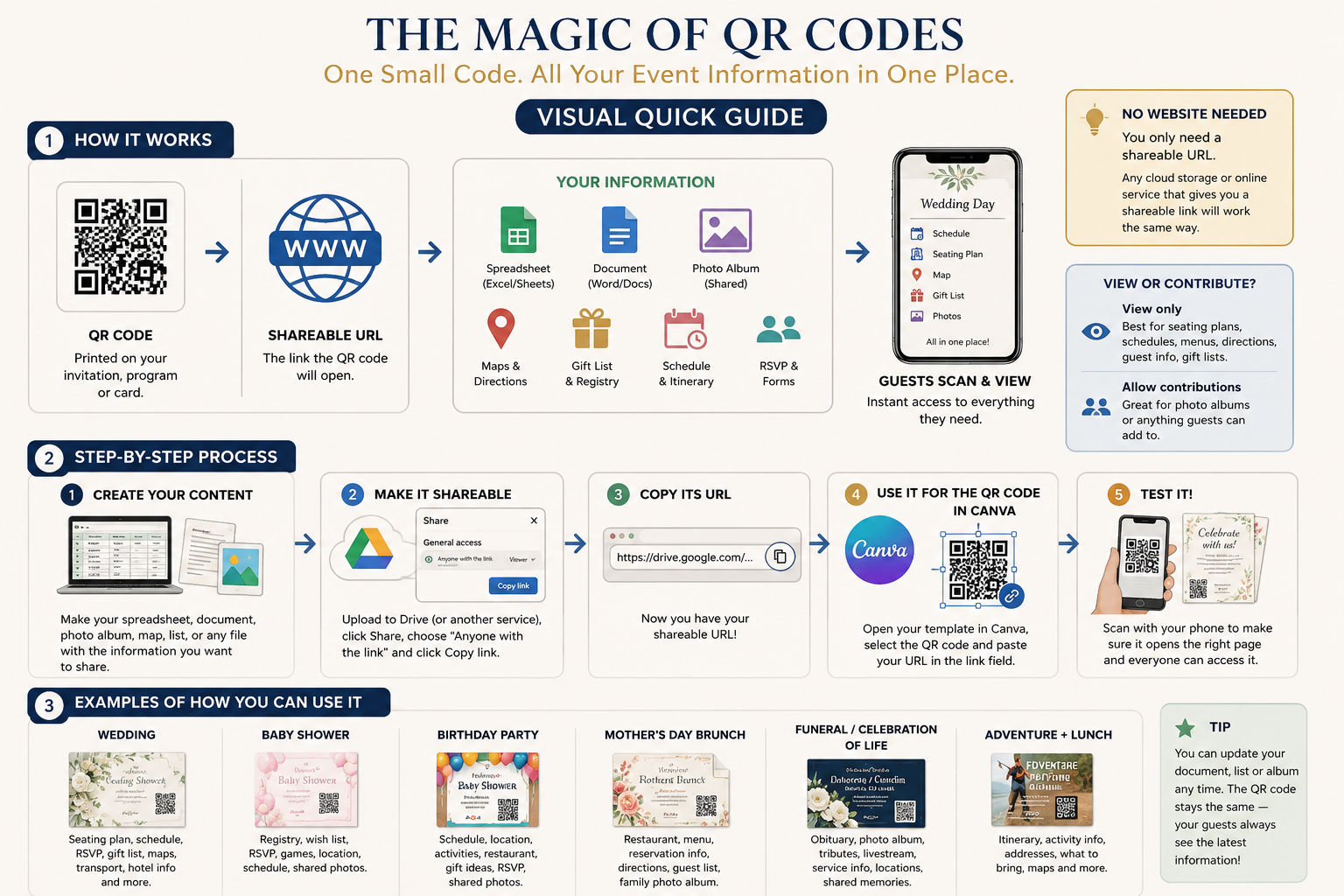
A QR code is a small square code that can be scanned with a smartphone camera. When someone scans it, their phone opens a link.
That simple link can turn your invitation, program or card into a gateway to everything your guests may need: directions, schedules, seating plans, gift lists, photographs, menus, videos, RSVP forms and much more.
Instead of trying to fit every detail onto your printed design, you can keep your template clean and beautiful while giving your guests easy access to everything else.
1. WHAT IS A QR CODE?
A QR code connects your printed or digital design to information stored online.
Someone simply scans the QR code with their smartphone camera and the link opens automatically.
That link might open a wedding seating plan, an event schedule, a gift list, a shared photo album, a map, an RSVP form, a memorial video or almost anything else you would like your guests to access.
You do not need a website to use a QR code. You only need a shareable URL.
2. WHAT IS A URL?
Don't worry if you've heard the word but aren't quite sure what it means. A URL is simply an internet address. It usually starts with something like https://.
When you open a website, document, map or photo album, it has an address that lets your browser find it.
Think of it this way:
When someone scans your QR code, their phone follows that address and opens the destination.
3. YOU PROBABLY ALREADY HAVE EVERYTHING YOU NEED
A simple spreadsheet, document, photo album or PDF can become the destination of your QR code. You don't need to build anything from scratch.
Here are a few simple examples:
A Spreadsheet such as Excel or Google Sheets works well for structured information like a seating plan, table assignments, a day-of schedule, a gift wish list, or a guest list with menu choices.
A Word or Google Doc is perfect for anything more narrative: directions, parking, dress code, what to bring, accommodation, or a full itinerary.
For example, a birthday invitation for a day with a zip-line adventure could lead to a document containing:
- 10:30 AM — Arrival & Check-in
- 11:00 AM — Zip Line Adventure
- 1:30 PM — Lunch at the Restaurant
- 3:30 PM — Birthday Cake
- 5:00 PM — Finish
Add addresses, maps and information about what to wear or bring, and one QR code gives everyone the complete plan.
A Shared Photo Album turns your QR code into something guests can participate in, not just read.
At a wedding, birthday or reunion, guests can view existing photos and, if you allow it, add their own so pictures don't stay scattered across dozens of phones.
At a funeral or Celebration of Life, it can bring together photographs from every stage of a loved one's life: school, military service, family holidays, later years and other treasured memories.
You don't need a separate QR code for every piece of information. One document or page can hold the schedule, addresses, maps, parking, menu, seating plan and gift list together, so your guests only need to scan once.
Your URL can point to almost anything with a shareable link: a website, spreadsheet, document, PDF, shared folder, photo album, video, map, registry, RSVP form, playlist, online memorial or livestream.
4. GETTING YOUR SHAREABLE URL
If you're sharing a normal website, its URL is simply the address in your browser.
If you're sharing a file, document, spreadsheet, folder or photo album, look for an option called Share, Copy Link or Get Link.
Let's use Google Drive as a simple example.
- Select the file you want to share, such as your wedding seating plan or event information document.
- Click Share.
- Find the section called General Access.
- Choose the appropriate sharing option.
- Click Copy Link.
The link you copied is the shareable URL you will use for your QR code in Canva.
You do not have to use Google Drive. Any cloud storage or online service that allows you to create a shareable link to your file, document, spreadsheet, folder or album can work the same way.
The principle is always the same: if your guests can access it through a shareable URL, your QR code can take them there.
5. VIEW OR CONTRIBUTE?
Before you share your link, decide what you want your guests to be able to do when they open it.
In most cases, you will choose between letting people simply view the information or allowing them to contribute.
View only is usually the safest option for information that guests only need to read.
- Seating plans
- Schedules
- Menus
- Directions
- Event information
- Gift lists
This prevents someone from accidentally changing information that everyone else needs to see.
Allow contributions can be useful when you want your guests to participate.
A shared photo album is a good example. Wedding guests could add the photos they take during the day, while family and friends attending a Celebration of Life could contribute older photographs and memories from their own collections.
Always check your sharing settings before sending or printing your QR code. Make sure guests can open the content without requesting access, and do not allow editing unless you actually want them to contribute.
6. USING THE QR CODE IN YOUR CANVA TEMPLATE
Many LifeMomentsPaper templates already include a QR code as part of the design.
Once you have created your content and copied its shareable URL, you simply connect that URL to the QR code in Canva.
If Your Template Already Includes a QR Code
- Open your LifeMomentsPaper template in Canva.
- Select the QR code included in the template.
- Open the QR code options in Canva.
- Paste your shareable URL into the URL field.
- Update or generate the QR code.
- Keep the QR code in its existing position, or move and resize it to suit your design.
- Scan the finished QR code with your phone before downloading or printing your template.
You can move or resize the QR code included with your template. Just make sure it remains large enough and clear enough to scan easily.
If You Want to Add a New QR Code
You can also create a new QR code directly in Canva.
- Open your design in Canva.
- From Canva's side panel, open Apps.
- Search for QR Code.
- Open the QR Code tool.
- Paste your shareable URL.
- Generate the QR code and position it on your design.
Before you print invitations, programs or cards, scan the QR code with a smartphone and make sure it opens the correct destination without asking your guests to request access.
7. WHAT COULD I USE MY QR CODE FOR?
Almost any information that can be opened through a shareable URL can become part of your invitation, program or event stationery through a QR code.
Here are just a few real-life ideas:
Gift Registry
Schedule
RSVP
Shared Photos
Maps
Restaurant
Tribute Video
Livestream
| EVENT | WHAT YOUR QR CODE COULD OPEN |
|---|---|
| Wedding | Seating plan, schedule, RSVP, gift registry, ceremony and reception locations, maps, hotel information, menu, shared photo album or transport information. |
| Baby Shower | Baby registry, wish list, RSVP, games, location, schedule or shared photos. |
| Birthday Party | Schedule, location, activities, restaurant information, gift ideas, RSVP, maps or shared photos. |
| Children's Party | Venue, schedule, what to bring, theme or costume information, activities, RSVP or gift ideas. |
| Mother's Day Brunch | Restaurant details, menu, reservation information, directions, parking or a family photo album. |
| Valentine's / Galentine's | Reservation, location, menu, playlist, activities, schedule or shared photos. |
| Funeral / Celebration of Life | Obituary, memorial page, photo album, tribute video, livestream, service information, directions or shared memories. |
| Retirement / Graduation | Venue, schedule, directions, gift ideas, photo album, video messages or a full itinerary. |
Combining an activity with a celebration? Going zip-lining before lunch, bowling before dinner, or arranging several locations during one event? Your QR code can open one simple itinerary containing every location, time and instruction your guests need.
8. TEST BEFORE YOU SHARE
Before printing invitations, programs or cards, always test your QR code with a smartphone.
Ideally, test it with a phone that is not logged into the account where the original file is stored. This helps you see what your guests will actually experience.
Check that:
- The correct page or file opens.
- The link works without requesting permission.
- The information is easy to read on a phone.
- Any maps, videos, forms or additional links work correctly.
Return to the file's sharing settings and check its access permissions. Your guests should not need to request access just to view the information you intended to share.
If possible, ask someone else to scan the QR code too. A second phone is a simple way to confirm that everything works exactly as expected.
9. THE MAGIC IS IN KEEPING THINGS SIMPLE
A QR code can make even a complicated event easier to organize.
Create the information once, keep it clear and organized, and share it through one simple link.
Your invitation or program stays clean and beautiful, while your guests have the practical information available on their phones whenever they need it.
Since the QR code simply points to your link, you can update the document or photo album later and keep using the same QR code, provided the URL itself does not change.
That means you can correct a typo, update a schedule, add new photographs or change information even after invitations or programs have already been printed.
You don't need a website. You only need a shareable URL.
Ready to Create Your Event?
Explore our templates with built-in QR codes and make sharing event information simple, clear and beautifully organized.
Explore QR-Ready Templates